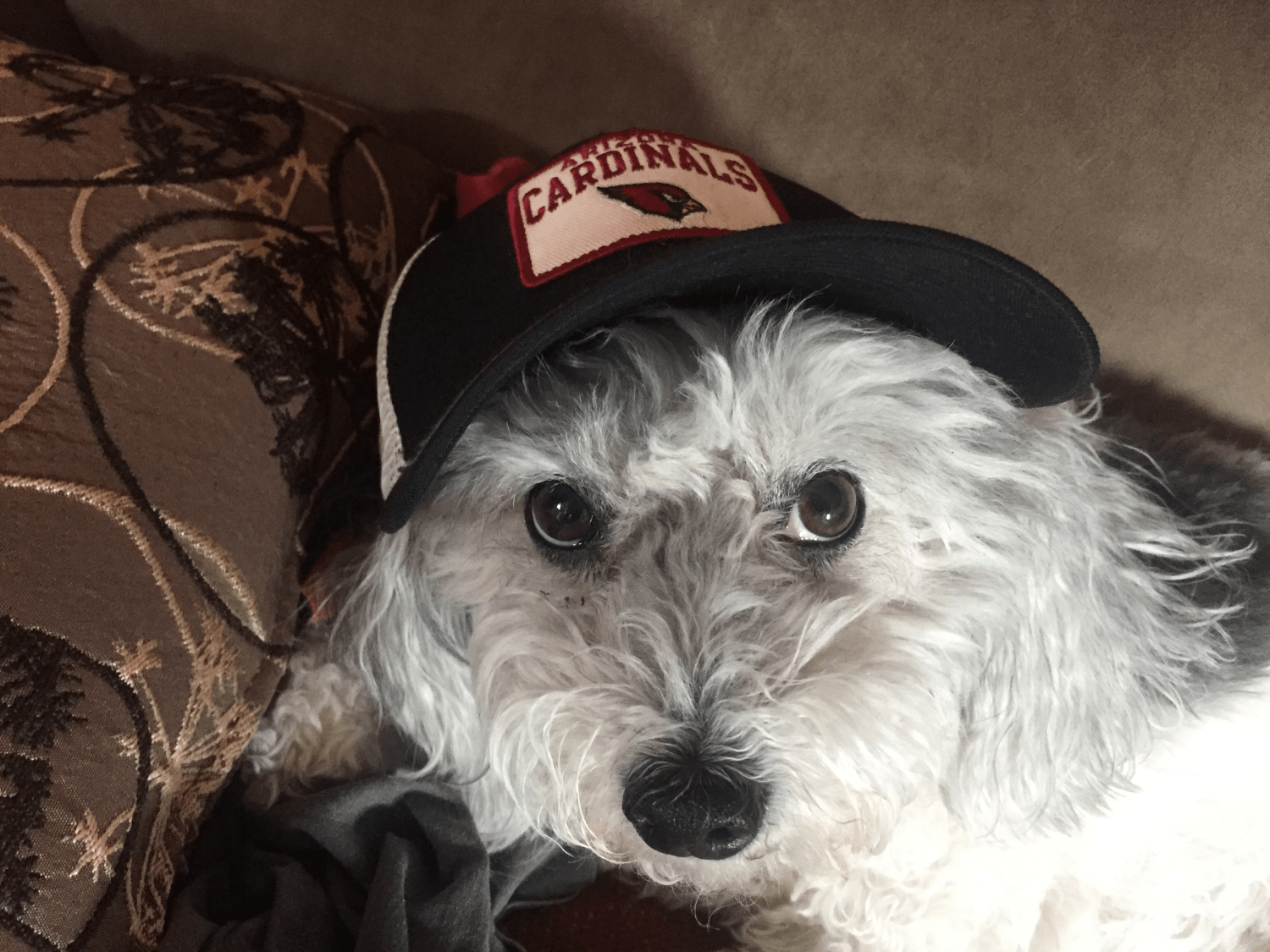
For six lucky years, I had the best pup anyone could ask for. Her name was Hailey and she stole my heart every time she looked at me. She was a shaggy, happy pup that made friends everywhere we went and I could not be thankful enough for the time I got to spend with her.
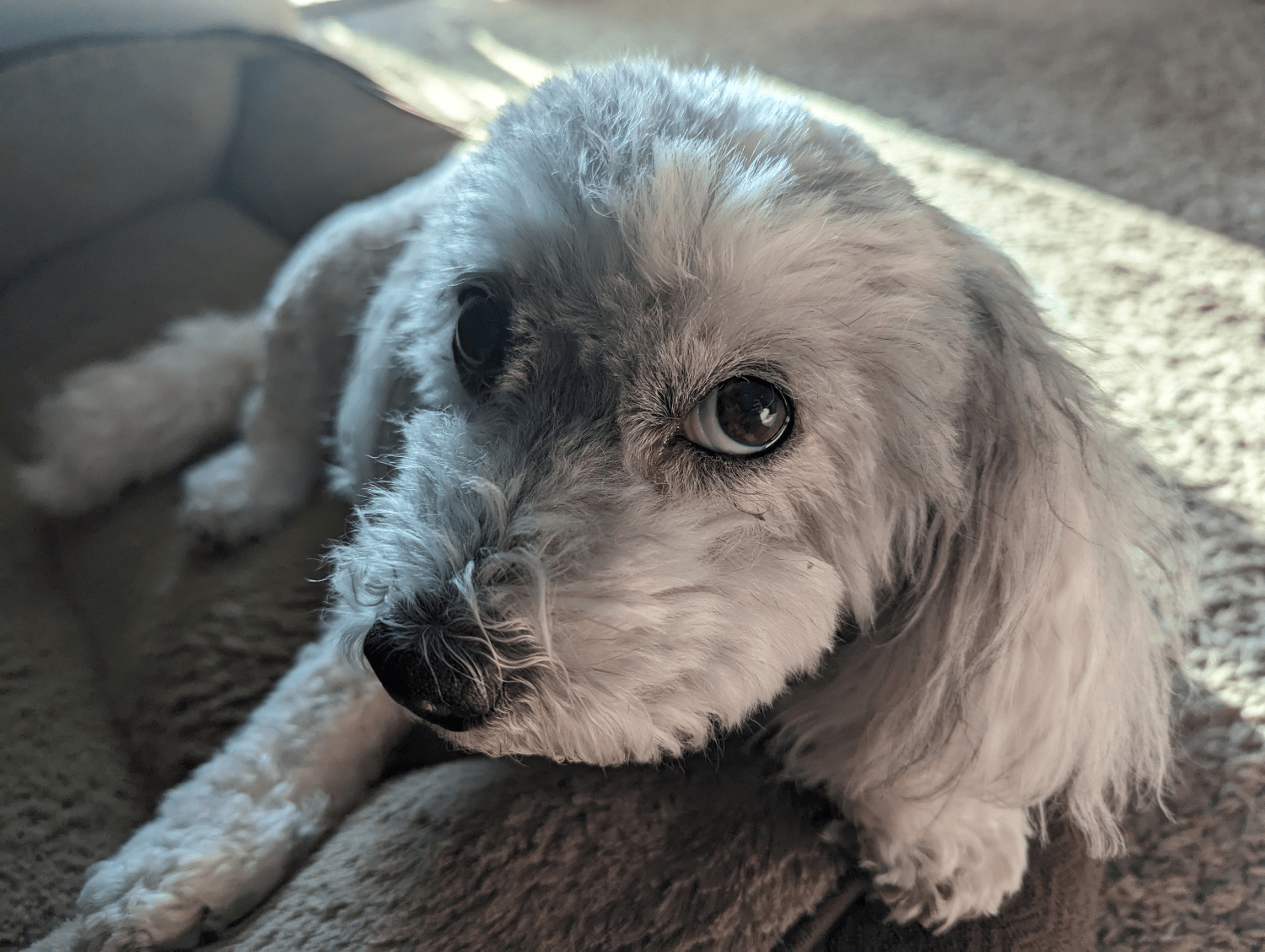
I’m so glad that we were able to get old together. She came home with me in October 2019, right before the pandemic hit. After a short while of working in the office, I was able to work from home full time for years. The best thing about that was having Hailey next to me the entire time. That sweet old pup should have gotten a paycheck along with me.
React Project Information
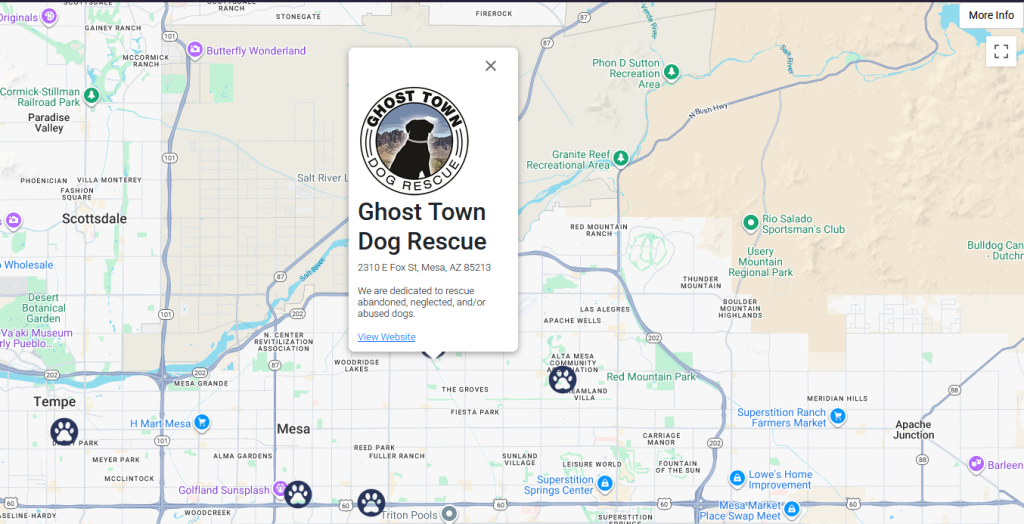
I have missed my pup a lot and realized just how much happiness a pet brings us, so I put together a small app using React that shows off a handful of different pet adoption businesses here in the East valley of Arizona. To get this project moving, I used the Google Maps component library from @react-google-maps/api. That library had a lot of examples online and it was easy to get up and running with it.
I have used vanilla JavaScript in the past for many projects since it’s easy to get up and rolling with Google’s easy to follow documentation. This was the first time in a while that I’ve used React libraries and components to customize a Google map. Here’s a few of the details I wanted to include in this project:
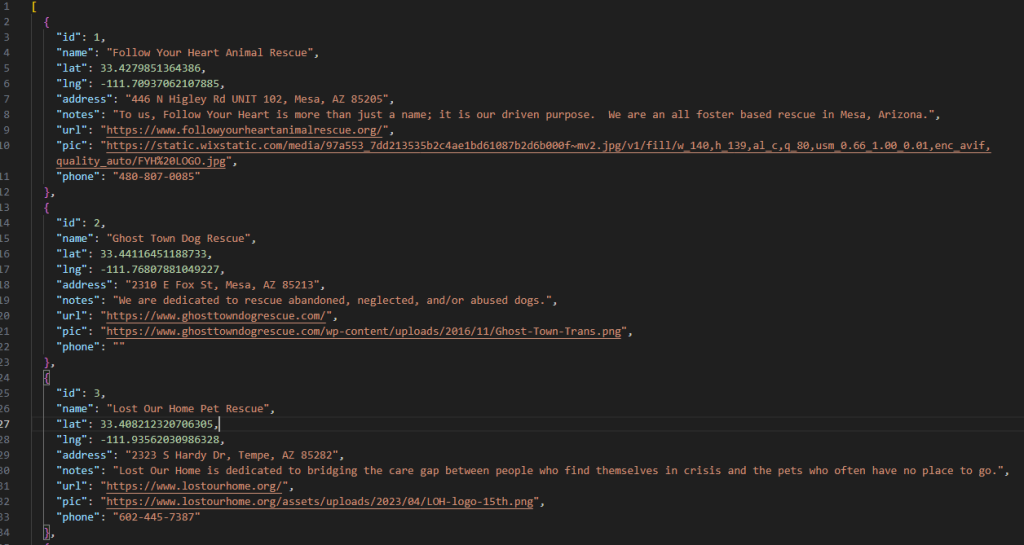
- Load map marker data from a custom JSON file
- Custom map icons
- InfoWindow popups featuring details about each pet adoption businesses
- Custom button(s) allowing for the viewing of additional material/notes
Getting Things Moving
I accomplished all the goals listed above using functional components in React. First, I looped through each different pin’s data object and loaded those markers on the map. I gathered the data using different search engines as well as data not found on the web.
Each marker got its own InfoWindow to display all the information for the business: name, contact information, and website.
For the map icons, I just went surfing on Google Images and found a paw icon. I resized it and put it to use. Lastly, I put a ‘More Info’ button in the top right corner of the map using the ControlPosition object in the Google Maps library. It was easy to find documentation for that, since most code I’ve seen in the past for that detail was always written in a hot mess of gnarly CSS.
You can check out the final product here. I put two dialog boxes to interactive with so that bots won’t hang around and use up resources.